
How to format chapter headings for an ebook
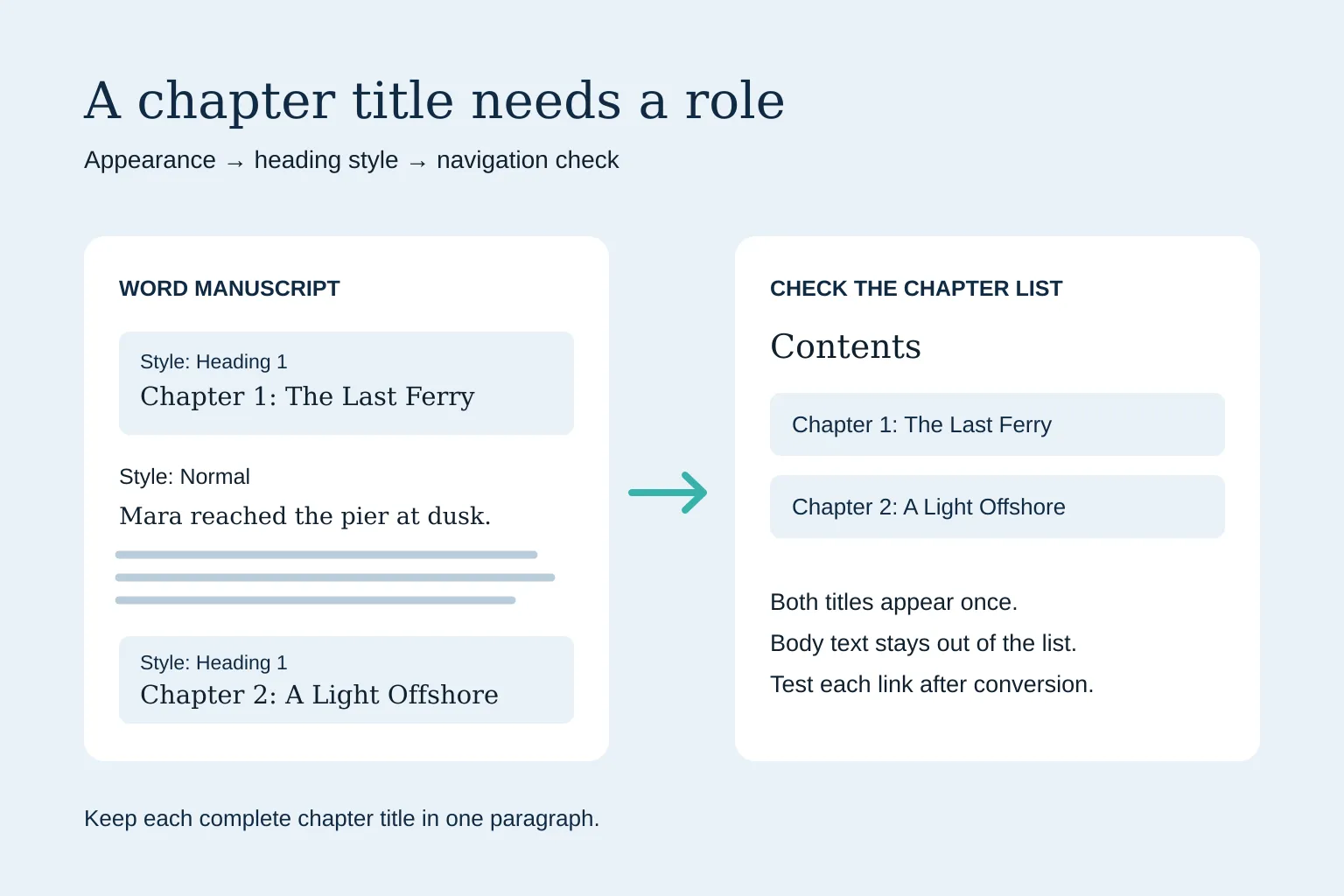
To format chapter headings for an ebook in Word, apply the Heading 1 style to each complete chapter title and keep body paragraphs in Normal. Check that the titles appear in Word’s Navigation pane, then check the chapter list and links again after conversion. Bold or large text alone may look like a heading without giving the conversion tool a reliable chapter boundary.
How to format chapter headings for an ebook in Word
A heading style gives a paragraph a structural role, as well as a visual design. Microsoft’s heading guide explains how styles support a table of contents and document organization. KDP’s ebook formatting guide specifically recommends Heading 1 for chapter titles.
Work on a copy of your manuscript so you can return to the original.
- Put the complete chapter title in its own paragraph. For example:
Chapter 1: The Last Ferry. - Select the title text.
- Open the Home tab in Word.
- Choose Heading 1 in the Styles gallery. Expand the gallery if the style isn’t visible.
- Select the first body paragraph and check that its style is Normal.
- Repeat for each chapter.
Choose a consistent alignment and appearance for the Heading 1 style instead of adjusting every title separately. KDP recommends centered chapter titles for its Word workflow; other conversion tools may apply their own design.
Keep the chapter number and title together unless your chosen tool explicitly supports a separate subtitle. Pressing Enter between Chapter 1 and The Last Ferry creates two paragraphs. Styling both as Heading 1 can create two navigation entries where you wanted one.
A two-chapter example you can follow
Say your short story has two chapters. The first begins with “Mara reached the pier at dusk.” The second begins with “By morning, the light had moved.” Set up the manuscript like this:
| Manuscript paragraph | Word style | Intended role |
|---|---|---|
| Chapter 1: The Last Ferry | Heading 1 | First chapter title |
| Mara reached the pier at dusk. | Normal | First chapter’s opening paragraph |
| Chapter 2: A Light Offshore | Heading 1 | Second chapter title |
| By morning, the light had moved. | Normal | Second chapter’s opening paragraph |
The two titles should appear as chapter-level headings. The opening sentences should stay out of the heading list. If the list contains four entries, inspect the styles on those opening paragraphs before changing the chapter titles.
A chapter title can contain a number as ordinary text. That is different from applying Word’s numbered-list formatting: Kobo’s conversion guidelines warn against headings that are also part of a numbered list because they can cause EPUB validation errors.
Check Word’s Navigation pane before converting
In Word for Windows, open View and select Navigation Pane, then choose the Headings tab. Microsoft’s Navigation pane instructions describe this check and note that headings inside tables, text boxes, headers or footers don’t appear there.
Compare the list with your manuscript:
- Every chapter title should appear once, in reading order.
- A chapter title should lead to the correct chapter when clicked.
- Body paragraphs and decorative quotes should not appear as chapter headings.
- Subheadings should sit at the intended level beneath their chapter.
If a title is missing, first check whether it has Heading 1 applied and whether it sits in the main document body. Changing its font size won’t fix a missing structural style.
For nonfiction, Heading 2 and Heading 3 can describe sections within a chapter. Keep that hierarchy in your source document, but check how your chosen converter handles it. A correct Word outline doesn’t guarantee identical ebook navigation.
Why can a quote become a chapter?
Some converters infer chapter boundaries from visual formatting. A large, bold quotation can resemble a chapter title and become an unwanted contents entry. Draft2Digital’s ebook layout guide describes this exact failure mode and recommends heading styles to make the distinction clearer.
Keep the quote in an appropriate body or quote style rather than Heading 1. Then inspect the converted chapter list. Converter rules differ, so use the instructions for the tool you actually export with; don’t assume that every tool treats every heading level the same way.
Test chapter navigation after conversion
Open the converted book in the preview or reader supplied for your publishing route. Word’s outline is a source-file check; the converted book needs its own check.
- Open the book’s contents or chapter-navigation list.
- Compare the entries with your expected chapter titles.
- Follow every chapter link.
- Check the first paragraph after each title for missing or duplicated text.
- Inspect the end of each chapter for text accidentally moved into the next one.
- Increase the reading font size and check that headings remain readable.
If a chapter is missing or a quote appears as one, return to the source manuscript, fix the relevant paragraph’s style, and convert again. Editing a manually typed contents list won’t repair the chapter structure that produced the problem.